 DailyWall
The most useful methods for time management are the Pomodoro technique (short focused work intervals), the Eisenhower matrix (sorting tasks by urgency and importance), time blocking (giving tasks fixed slots in your calendar), timeboxing (a time limit per task), the 1-3-5 rule (a realistic daily list), eat the frog (hardest task first) and Getting Things Done (capturing everything in a trusted system). Pick the one that matches your biggest problem.
There are dozens of methods for time management, and most of them work, just not for the same problem. The Pomodoro technique helps when you can’t start or keep drifting off. The Eisenhower matrix helps when everything feels urgent. Time blocking helps when your calendar fills up with other people’s plans. Using the wrong method for your problem is why so many people try a technique for a week and decide that time management “doesn’t work for them”. This guide explains eight proven time management techniques step by step, what problem each one solves, when not to use it, and how to combine two or three into a simple system you’ll actually keep.
Which time management method fits your problem?
Before picking a technique, name the problem. Most time management trouble falls into one of these, and each has a method that targets it directly:
Tick the steps as you go
1. The Pomodoro technique: work in short, focused intervals
Developed by Francesco Cirillo in the late 1980s and named after his tomato-shaped kitchen timer, the Pomodoro technique splits work into 25-minute intervals separated by short breaks. Its real power isn’t the number 25; it’s that a short, defined block is easy to start, and the coming break makes it easier to ignore distractions until then.
When to use it: for tasks you’re avoiding, for studying, and on days full of interruptions. When not to: for deep creative work where 25 minutes ends just as you get going. Many people switch to 50-minute blocks with 10-minute breaks, or 90-minute deep work blocks, once starting is no longer the problem.
Tick the steps as you go
2. The Eisenhower matrix: urgent vs important
The Eisenhower matrix is named after US president Dwight D. Eisenhower, who is often quoted as saying that the urgent is seldom important and the important is seldom urgent. Stephen Covey made it popular as a time management tool in The 7 Habits of Highly Effective People. You sort every task into one of four boxes:
Tick the steps as you go
3. Time blocking and 4. timeboxing: give tasks a place and a limit
Time blocking means planning your day as a series of blocks in your calendar, each dedicated to one task or type of work: “9:00–11:00 write report, 11:00–11:30 email, 14:00–15:30 client calls”. Instead of a list that says what to do, you get a plan that says when. Writer and computer scientist Cal Newport is one of its best-known advocates. It works especially well for people whose time is constantly claimed by others, because a blocked slot is easier to defend than an empty one.
Timeboxing is a close cousin, borrowed from software project management: you give a task a fixed amount of time and stop when it runs out, finished or not. It fights the tendency described by Parkinson’s law, the old observation that work expands to fill the time available. Timeboxing is ideal for perfectionists and for open-ended tasks like research, email or design tweaks.
The two combine naturally: block the time in your calendar, then treat the end of the block as a real deadline.
Tick the steps as you go
5. The 1-3-5 rule and 6. the Ivy Lee method: realistic daily lists
An endless to-do list is demoralising, because you never reach the end. Both of these methods cap the list.
The 1-3-5 rule: each day, plan one big task, three medium tasks and five small ones. That’s nine items, which is a realistic amount for most workdays with meetings and interruptions. Everything else waits for another day. Its strength is that it forces you to choose before the day begins.
The Ivy Lee method comes from a story told about the consultant Ivy Lee in the early 1900s. At the end of each workday, write down the six most important tasks for tomorrow and rank them. The next day, work on the first until it’s finished before moving to the second. Whatever is left moves to the next day’s list. It’s almost absurdly simple, and that’s why people keep coming back to it.
Choose 1-3-5 if your days have a mix of big and small tasks; choose Ivy Lee if you mostly struggle with deciding what comes first.
7. Eat the frog: do the hardest thing first
“Eat the frog” comes from a saying often attributed to Mark Twain: if the first thing you do each morning is eat a live frog, nothing worse will happen for the rest of the day. Brian Tracy turned it into a time management method in his book Eat That Frog!. Your frog is the most important task you’re most likely to procrastinate on. Do it first, before email, before messages, before the small tasks that make you feel busy.
It works because willpower and attention are usually freshest early in the day, and because finishing the dreaded task removes the background guilt that otherwise drains energy all day. It suits people who procrastinate on big tasks. It suits night owls less, so if your sharpest hours come later, eat the frog then; the principle is “hardest first in your best hours”, not “before 8 a.m.”.
8. Getting Things Done (GTD): the basics
David Allen’s Getting Things Done, first published in 2001, is less a technique than a complete system. Its core idea is that your mind is for having ideas, not holding them. When every open commitment lives in a trusted system outside your head, you can focus on one thing at a time without the nagging feeling that you’re forgetting something.
GTD has a reputation for being complicated, but its five steps are simple:
Tick the steps as you go
How to combine time management methods into one simple system
These methods aren’t rivals. The most effective setups combine two or three that each cover a different part of the day. Here’s an example that works for many people with a desk job or a full study schedule:
Tick the steps as you go
Keep your time management plan on your Lock Screen with DailyWall
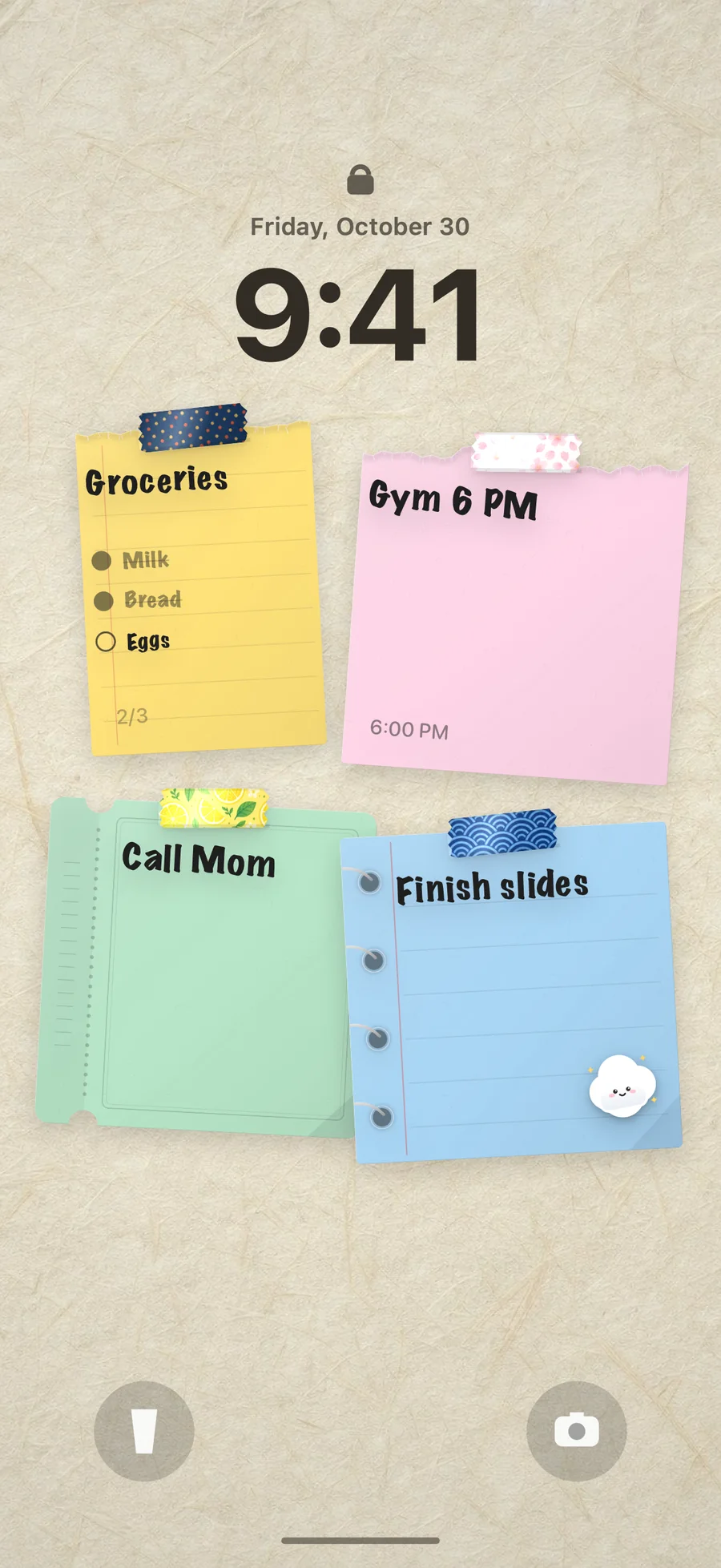
Every method above fails the same way: the plan lives in a notebook or app you forget to open, and the day takes over. The fix is to put the plan where you look anyway. Most of us check our phones many times an hour, so the Lock Screen is the most visible planner we have.
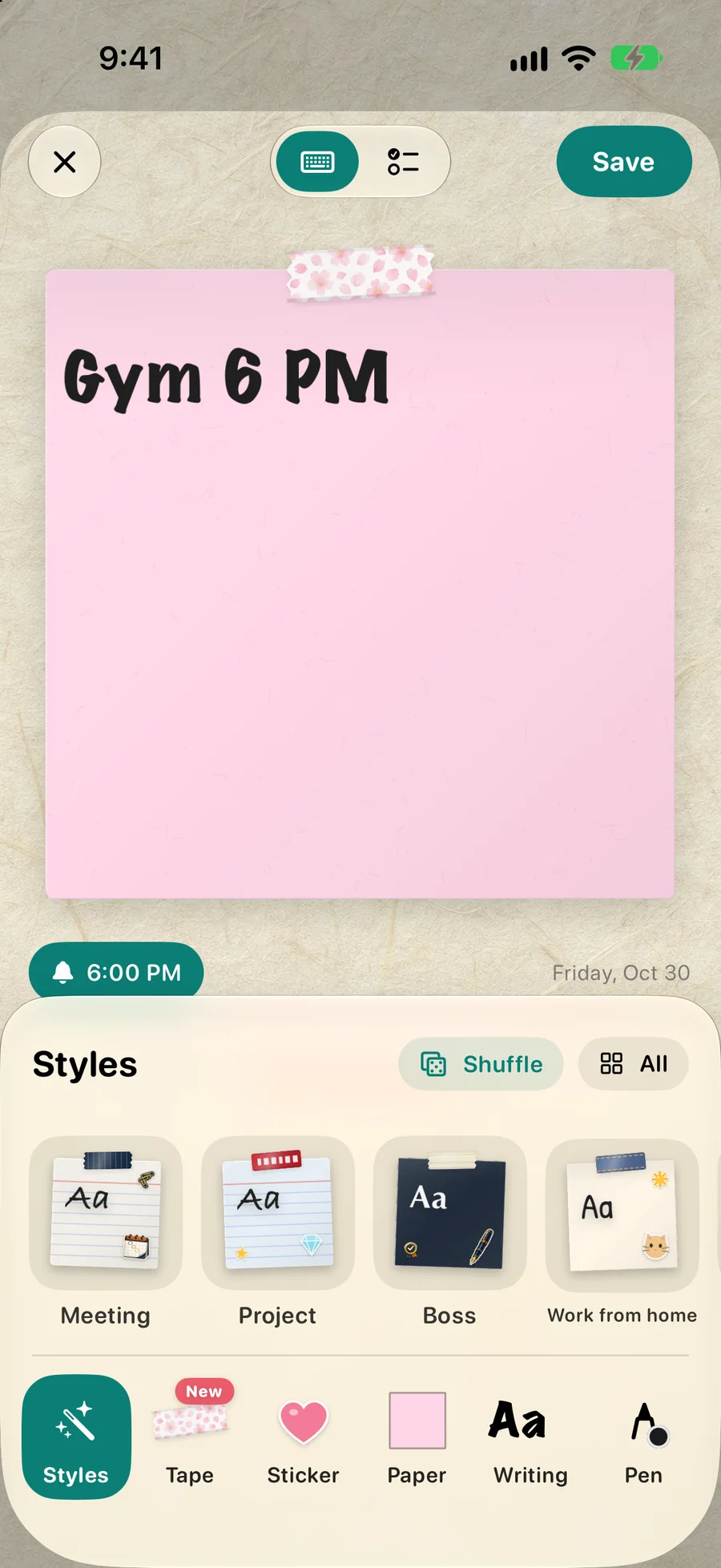
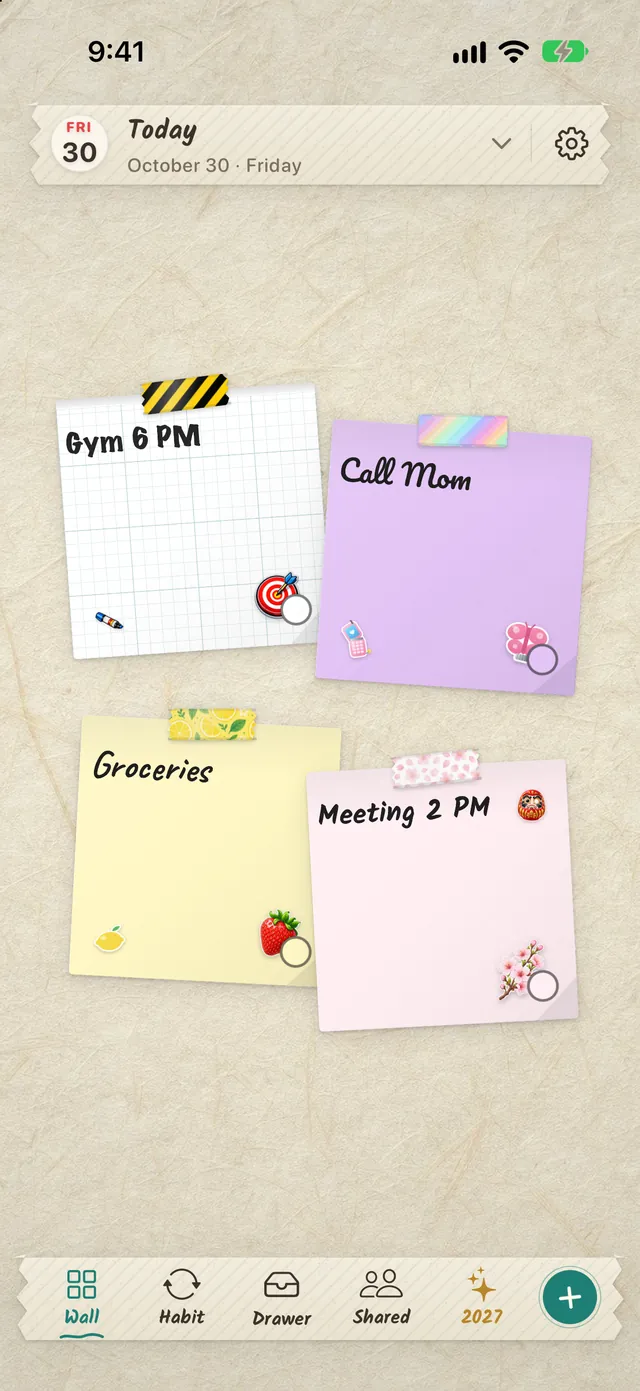
DailyWall is an iPhone and iPad app where every day has its own wall of paper notes and checklists, and that wall becomes your Lock Screen wallpaper. A Shortcuts automation you set up once keeps it updated, so when you tick off a task, the Lock Screen follows. Nothing is saved to your Photos library. Notes can have a time and a reminder, which suits time blocking, and repeating notes and habit papers handle the routines, such as a daily Focus block habit that fills one dot per finished block.
Tick the steps as you go
Time management tips for students and remote workers
Students get the most from Pomodoro and timeboxing: study in 25- or 50-minute blocks with a clear goal for each, and plan revision weeks ahead so you can space topics out. Our study planner Lock Screen post has layouts for exam season.
Remote workers benefit most from time blocking, because nobody else gives the day a shape. Block fixed start and end times, a lunch break and your focus hours, and turn on an iPhone Focus during those hours so notifications stay quiet.
Parents and busy households often find that the bottleneck isn’t their own list but coordinating everyone else’s. A shared list that everyone can see and tick off saves a lot of messages; see our guide to shared lists for couples and families.
Whoever you are, the most common mistake is the same: planning a day with no slack. Leave room for the unexpected, and your plan will survive until evening.
Questions people ask
What are the main methods for time management?
The best-known are the Pomodoro technique, the Eisenhower matrix, time blocking, timeboxing, the 1-3-5 rule, eat the frog, Getting Things Done and the Ivy Lee method. Each targets a different problem, from procrastination to an overloaded list.
Which time management technique is best?
The one that fits your biggest problem. Pomodoro helps with starting and focus, the Eisenhower matrix with priorities, time blocking with a crowded calendar, and the 1-3-5 rule with an endless to-do list.
What is the difference between time blocking and timeboxing?
Time blocking assigns tasks to specific slots in your calendar. Timeboxing sets a fixed time limit for a task and you stop when it runs out. Many people use both: block the time, then treat the end of the block as a deadline.
What is the 1-3-5 rule?
A daily planning method: one big task, three medium tasks and five small tasks per day. It limits the list to what realistically fits in a workday and forces you to choose priorities in advance.
How do I use the Eisenhower matrix?
Sort each task into four boxes: urgent and important (do now), important but not urgent (schedule), urgent but not important (delegate or minimise) and neither (drop). Aim to spend more time in the important-but-not-urgent box.
How can students improve time management?
Plan the week ahead, study in focused 25- to 50-minute blocks with a clear goal for each, review topics over several days instead of cramming, and keep your daily plan somewhere you’ll see it, like your Lock Screen.