DailyWall
Pick a wallpaper below and tap Download (or open it full size, touch and hold, then Save to Photos). Then touch and hold your Lock Screen, tap +, choose Photos and pick the image. Keep the top third calm for the clock. To keep a gift list or to-do list on top that updates itself, choose the image as Your photo wall in DailyWall.
A Christmas Lock Screen is the easiest bit of decorating you’ll do all December: no ladder, no tangled lights, and you see it every time you pick up your phone. Below are 10 free Christmas wallpapers for iPhone that we drew for this page: gift tags on red yarn, paper snowflakes, a kraft-paper package, an advent calendar and more, each with the clock area kept calm and space in the middle for a note. After the downloads you’ll find how to set a wallpaper on the iOS 27 Lock Screen, how to keep a gift list or to-do list on top of it, and 15 Christmas Lock Screen ideas you can copy.
Before you decorate: what fits on a Christmas Lock Screen
Every iPhone Lock Screen has three zones. The top third holds the date, the clock and a row of small widgets. The middle is yours. The bottom strip holds the flashlight and camera buttons and your notifications. A festive photo that’s busy behind the clock makes the time hard to read, so put the sparkle in the middle and keep the background darker or simpler at the top.
The other rule: one idea per screen. A gift list and a menu and a countdown is a to-do app, not a Lock Screen. Pick the one you need this week and swap it next week. Touch and hold the Lock Screen and tap + to keep a festive one alongside your everyday Lock Screen, so you can switch back in January.
10 free Christmas wallpapers for iPhone
Every wallpaper here was drawn for DailyWall in the same paper style as the app: washi tape, red yarn, kraft paper and paper-cut shapes. Each one is 1179×2556 pixels, the screen size of iPhone 15, 16 and 17, and fills larger and smaller iPhones too (iOS crops a sliver at the edges). The top third is kept quiet so the clock and widgets stay readable, the bottom strip is left for notifications, and most of them have an empty tag, card or space in the middle for a note.
They’re free for your own phone: no sign-up, no watermark on the wallpaper itself. Please don’t re-upload them elsewhere as your own. Tap a preview to open the full-size PNG, or tap Download.
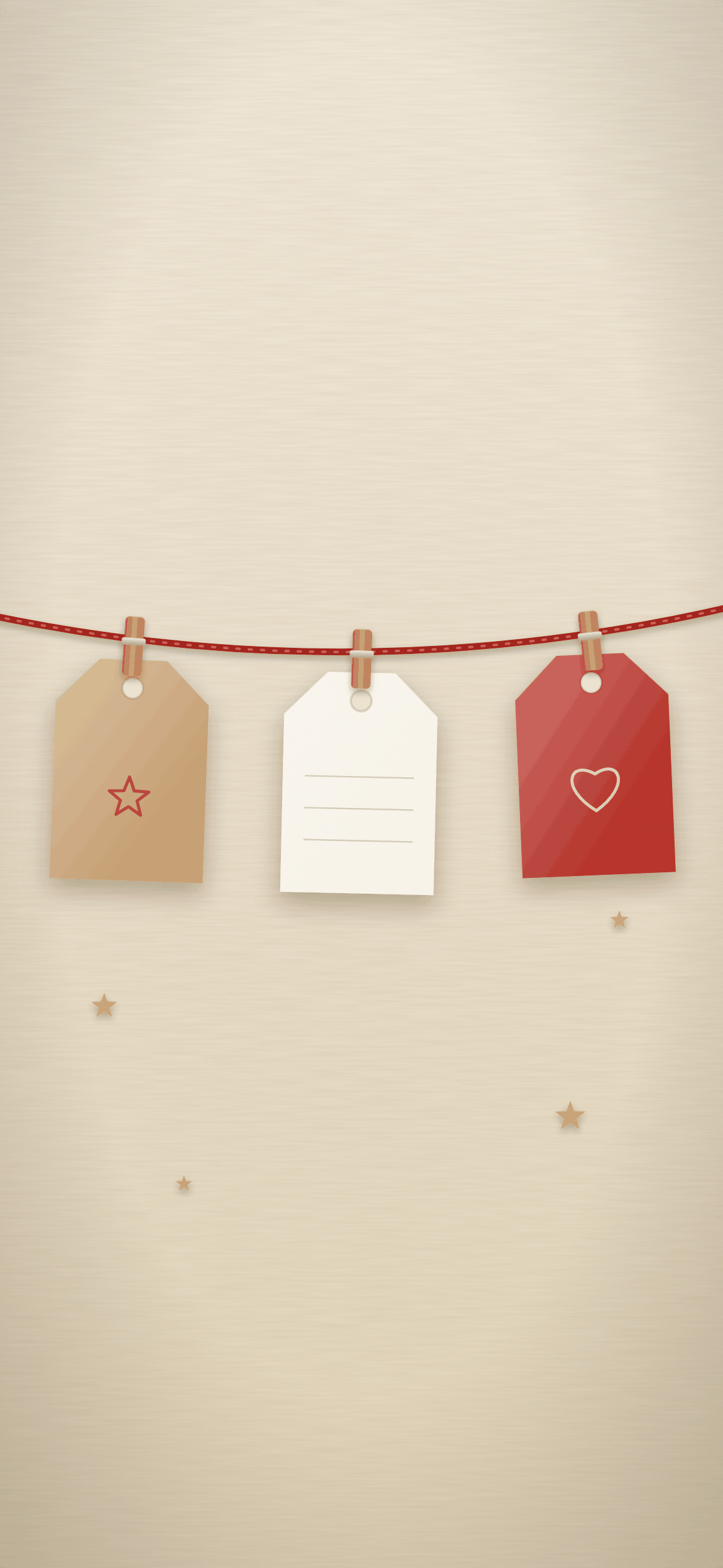
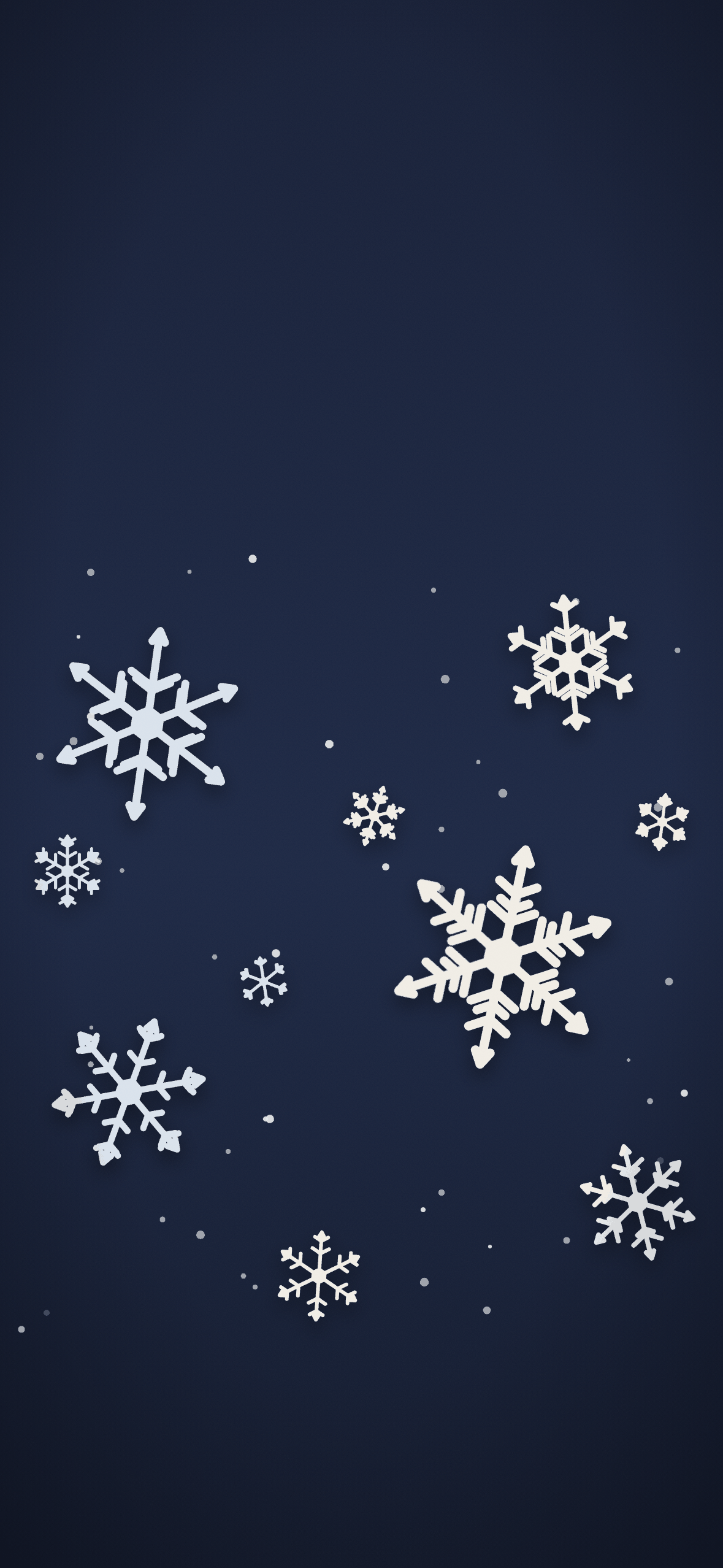
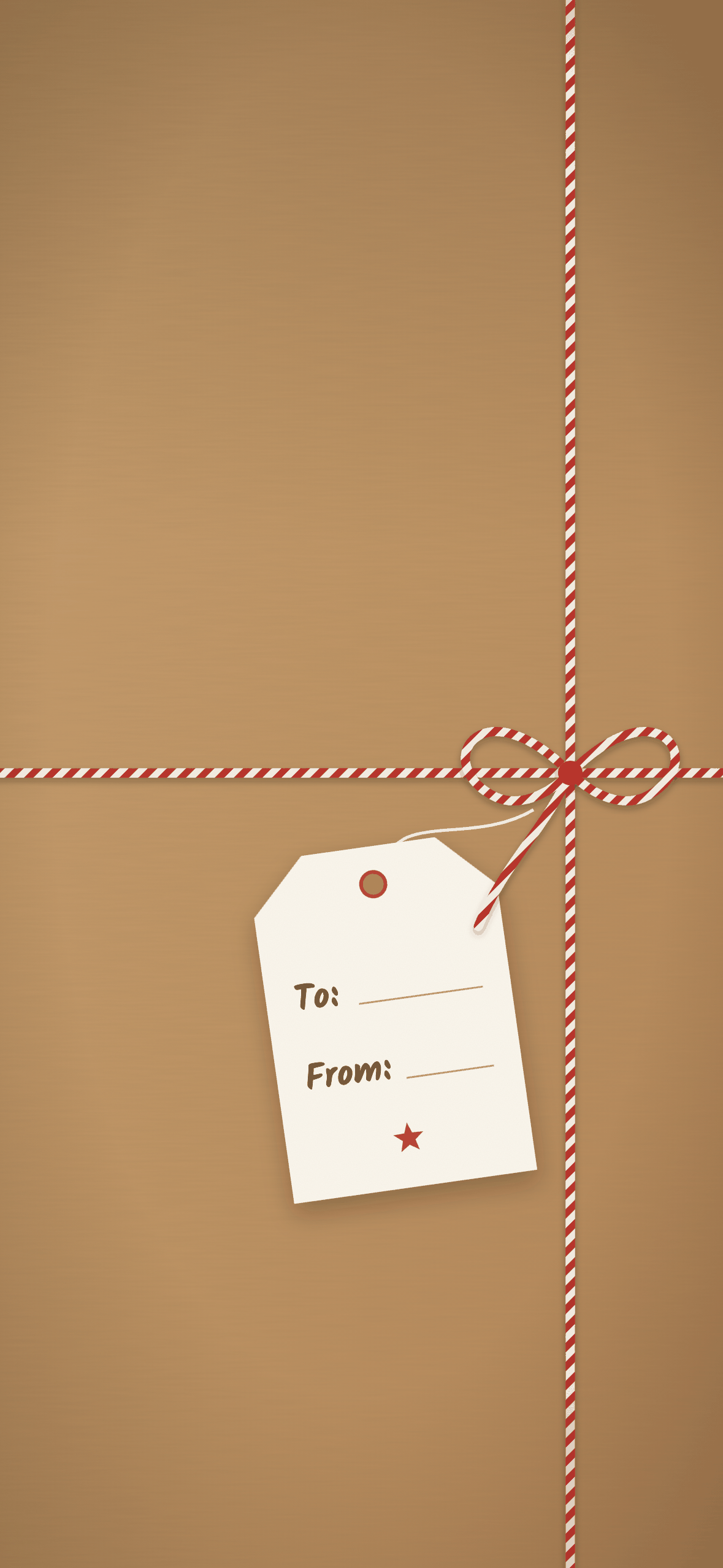
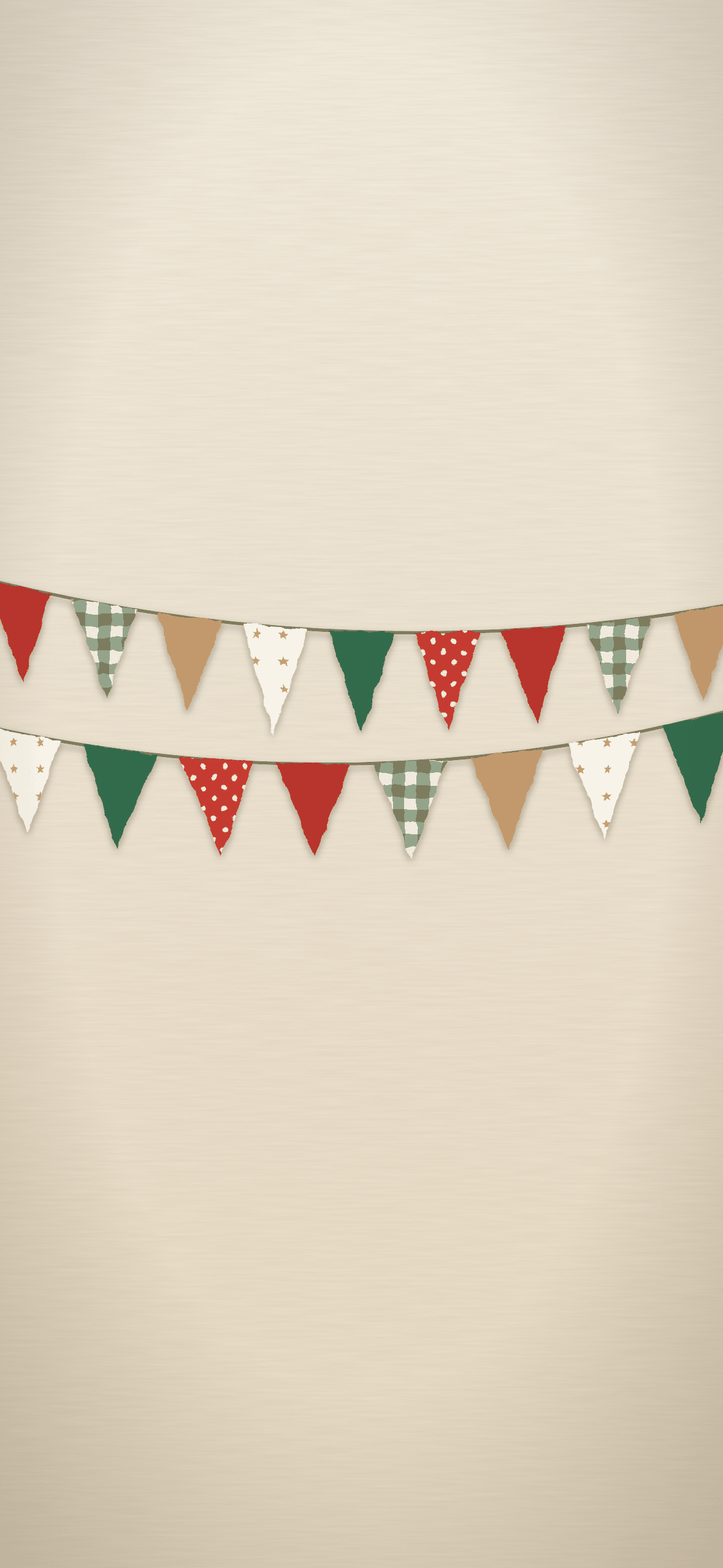
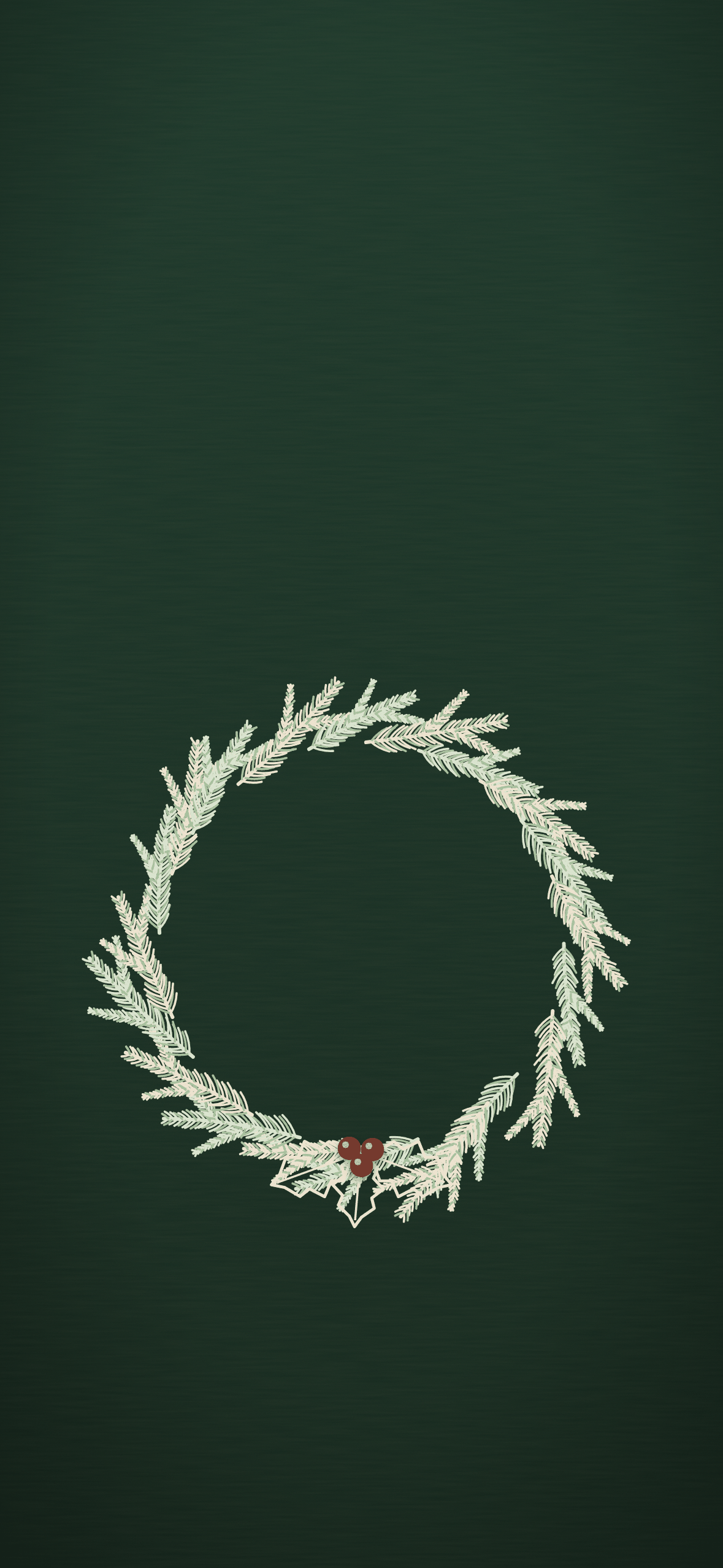
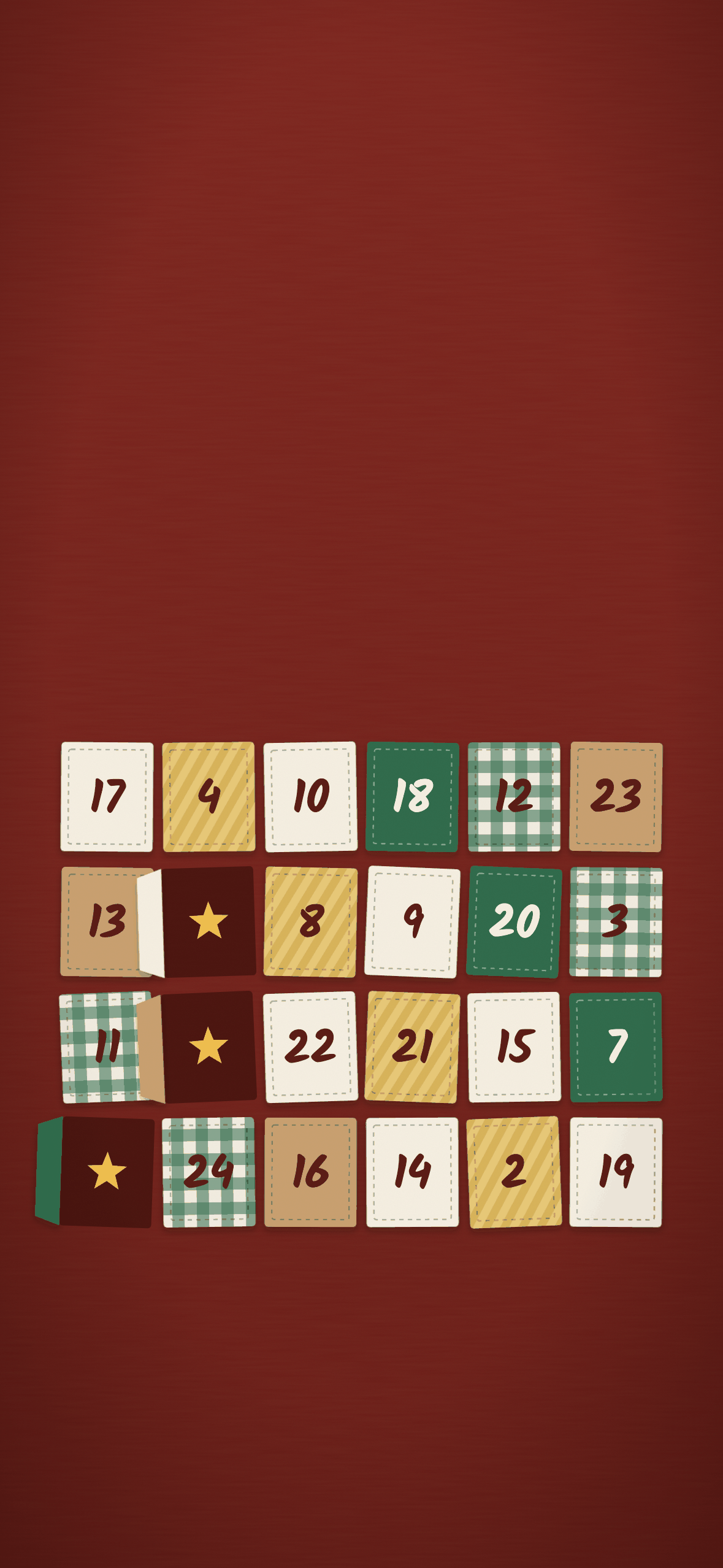
1179×2556 PNG · fits every iPhone · free for your own phone
How to set a Christmas wallpaper on your iPhone Lock Screen (iOS 27)
Setting a photo as the Lock Screen works the same way in iOS 27 as in iOS 26. First get the image into your Photos library, then make a new Lock Screen with it, so your everyday one stays saved for January.
Tick the steps as you go
Keep a gift list or to-do list on top of your Christmas wallpaper
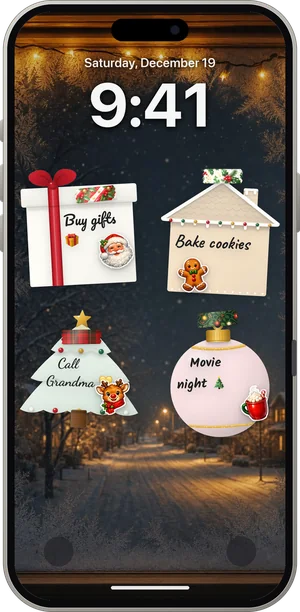
A wallpaper with a blank tag looks lovely, but you can’t tick anything off on it. DailyWall can: in the app’s wall picker, choose Your photo and pick one of the wallpapers above. Your notes hang on top of it as paper sticky notes, and a one-time Shortcuts automation sets the wall as your Lock Screen each time you close the app. Tick a present off the gift list and the next Lock Screen shows the tick. Using your own photo as the wall is part of the free version.
If you only need a list for a day or two, our free Christmas list maker builds a gift list, wish list or Secret Santa draw in your browser and saves the list as a Lock Screen image. For a list that keeps itself up to date, and that your family can see on their own phones as a shared wall, use the app.
Christmas Lock Screen ideas for planning
December is the busiest month for lists. These layouts turn the jobs into something you actually enjoy looking at.
Tick the steps as you go
Cozy and aesthetic Christmas Lock Screen ideas
If you want the Lock Screen to feel like December rather than a planner, go for color and texture with just a word or two.
Tick the steps as you go
Christmas Lock Screen ideas for couples and families
Some December lists belong to more than one person. A shared list on everyone’s Lock Screen beats a group chat that scrolls away.
Tick the steps as you go
New Year’s Eve: two more ideas for the last week
Once Christmas is over, the Lock Screen can turn towards the new year. A midnight countdown note (“Tonight: 23:59 countdown, champagne in the fridge, pick an outfit”) keeps the evening on track, and on 1 January it can become a goals note. Our guide to a New Year goals Lock Screen and the post on New Year’s resolutions for 2027 pick up from there.
There’s also the 2027 Wish Wall: one wish per person from around the world, lighting up time zone by time zone at midnight on 31 December.
A Christmas Lock Screen with widgets, using built-in iOS tools
A festive photo and a widget or two need no app at all:
Tick the steps as you go
Make your Christmas Lock Screen with DailyWall (and keep it current)
In DailyWall you design the Lock Screen as a wall of paper notes, then a one-time Shortcuts automation sets that wall as your wallpaper each time you close the app. Tick a present off the gift list and the next wallpaper shows the tick. Nothing is saved to your Photos library.
Free: pick a dark wall such as Night or Forest, use snowflake, star, sparkle and gift stickers, and frost, tartan, gold, stars or confetti washi tape. During the season (1 November to 10 January) ready-made walls appear for a Gift list, a New Year’s party and a Midnight countdown, so you can start from a full wall instead of a blank one. The free version includes five notes a day.
Pro: the Christmas & New Year pack adds 20 stickers (Santa, a reindeer, baubles, a gingerbread man, mistletoe, a cocoa mug and more), 12 washi tapes (red tartan, candy stripe, fairy lights, holly) and 8 paper shapes: a tree, a bauble, a gift, a stocking, a mitten, a snowy card, a gingerbread house and a star. From 15 November the pack moves to the front of the sticker, tape and paper shelves so it’s the first thing you see. The New Year 2027 pack adds party stickers, sparkly tapes and four walls, including Winter window and Fireworks skyline.
Setting up the automation takes about two minutes once; our step-by-step guide to putting notes on your iPhone Lock Screen walks through it for iOS 26 and iOS 27. For more year-round inspiration, see iPhone Lock Screen ideas.
Questions people ask
Are these Christmas wallpapers free?
Yes. All 10 are free to download and use on your own iPhone, with no sign-up. Please don’t re-upload them elsewhere as your own.
What size are the Christmas wallpapers?
1179×2556 pixels (PNG), the screen size of iPhone 15, 16 and 17. They also fill the screen on Plus, Pro Max and older models; iOS trims a sliver at the edges.
How do I make a Christmas Lock Screen on my iPhone?
Save a wallpaper to Photos, touch and hold the Lock Screen, tap +, choose Photos and pick the image. Then change the clock color and add widgets. For a list that updates itself, use DailyWall’s sticky-note wall with its Shortcuts automation.
Can I switch back to my normal Lock Screen after Christmas?
Yes. Creating a new Lock Screen keeps your old one. Touch and hold the Lock Screen and swipe to the one you want.
Can I put my to-do list on top of a Christmas wallpaper?
Yes, with DailyWall: choose Your photo in the wall picker, pick the wallpaper, and your notes hang on top. The app sets the result as your Lock Screen each time you close it.
Can my Lock Screen count down to Christmas?
DailyWall doesn’t count down automatically. A note like “Christmas in 12 days” that you update each morning works well, and our countdown page shows the days left.
Are DailyWall’s Christmas stickers free?
Some winter-friendly stickers and tapes are free (snowflake, star, sparkle, gift; frost, tartan, gold). The Christmas & New Year pack with 20 stickers, 12 tapes and 8 paper shapes is part of Pro.