 DailyWall
Add the Reminders widget for two or three tasks under the clock: free and built in. For the whole day with ticks, turn the list into your wallpaper; DailyWall redraws it every time you close the app.
You pick up your phone dozens of times a day. If today’s list is the first thing you see, you forget less and drift less. iPhone gives you two built-in ways to get tasks onto the Lock Screen, and there is a third, bigger one: making the list itself your wallpaper. Here is what each shows, how to set it up, and how to combine them.
Option 1: the Reminders widget (free, built in)
Apple’s Reminders app has Lock Screen widgets. The rectangular one shows a few items from a list you choose; the circular one shows a count. They are the quickest start if your tasks already live in Reminders.
Tick the steps as you go
Option 2: a to-do app’s widget
Most to-do apps offer Lock Screen widgets too. They tend to show the next task or how many are left, which is enough as a nudge but not as a plan.
DailyWall’s Lock Screen widget shows how many notes are left today, the next note or a single line above the clock. Its Controls can also put “new note” and “complete the next note” on the Lock Screen or in Control Center, so you can tick something off without unlocking into the app.
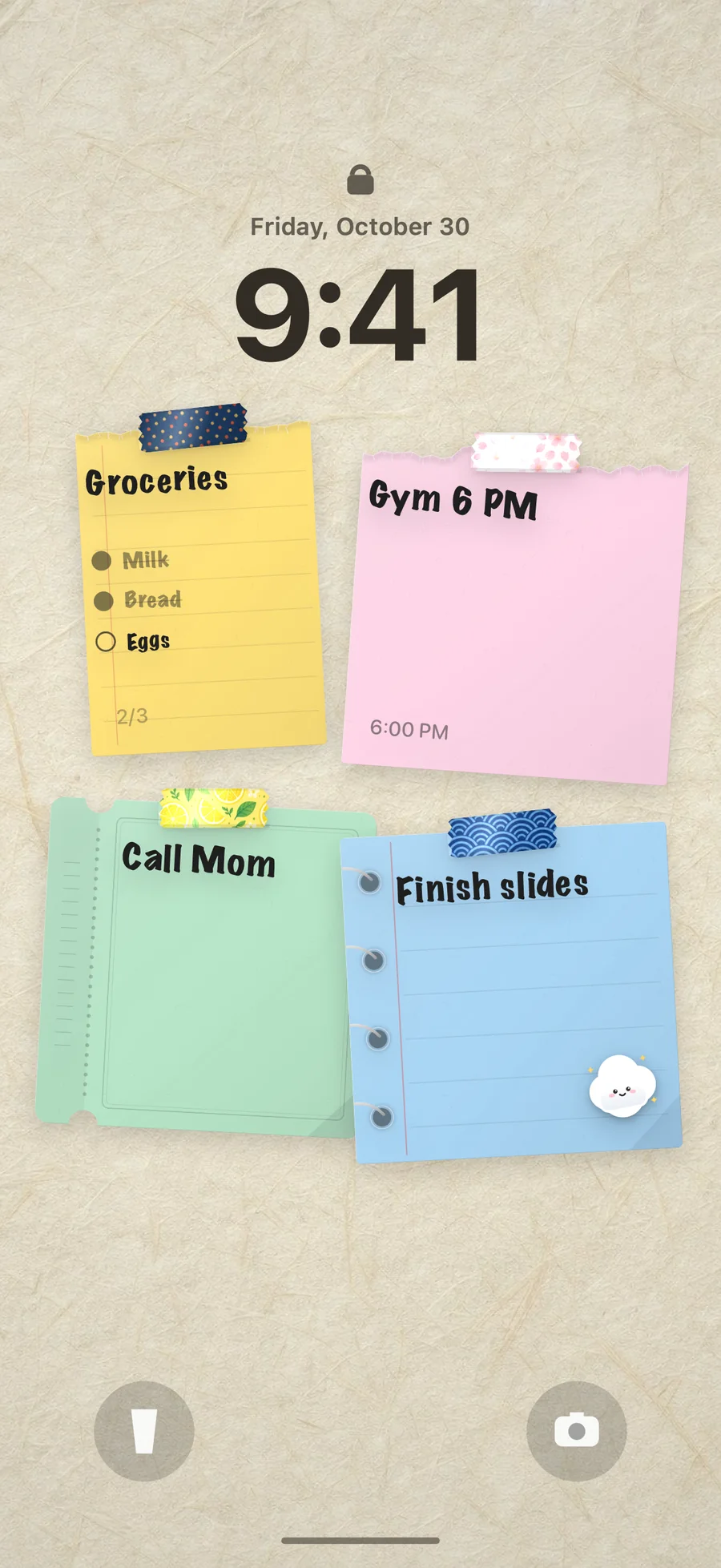
Option 3: the to-do list as your wallpaper
For the whole day at a glance, the list has to be the wallpaper. A static image (a template you fill in once) looks nice for a day and is wrong by lunchtime. A wallpaper generated from your live list stays right.
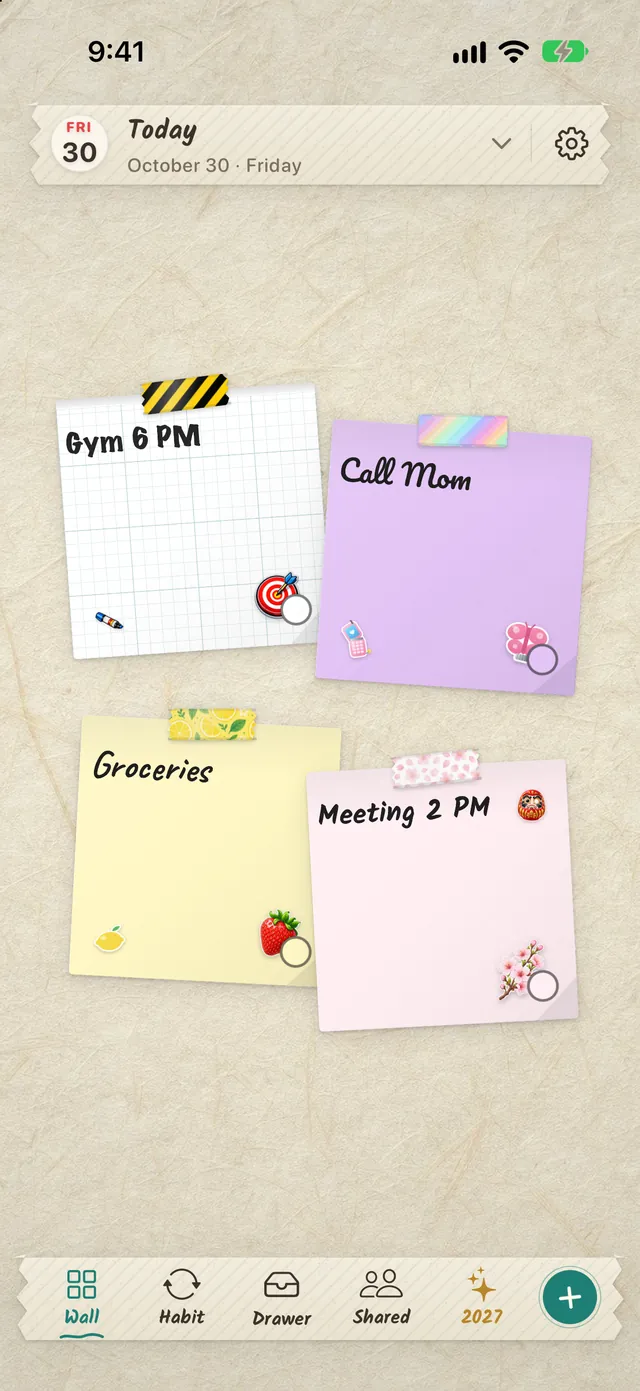
In DailyWall you write the day as paper notes on a wall: a checklist for errands, a note for the meeting at 3, a pink one for the gym. Tick an item and the paper shows the tick. Each time you close the app, a Shortcuts automation sets that wall as your Lock Screen; an optional morning refresh brings the new day’s list before you wake up.
Tick the steps as you go
Plan the whole day in one sentence
Typing tasks one by one is the slowest part of any to-do list. From DailyWall 1.8.5 you can write or dictate the day in one go, say “call the bank at 9, pick up the parcel, pay rent on Friday, gym tomorrow 7pm”, and DailyWall splits it into separate papers on the right days. With Apple Intelligence it runs on your iPhone.
If your tasks already live in Apple’s Reminders, turn on Reminders papers in DailyWall’s Settings instead: today’s reminders appear on the wall as papers, and ticking one off on the wall ticks it off in Reminders as well.
Make it work for focus, not guilt
A Lock Screen list works best when it is short. Three to five things you will really do today beat a backlog of thirty. Keep the backlog in a drawer or a separate list and promote only today’s tasks to the wall.
Link Lock Screens to Focus modes for different contexts: a work Lock Screen with the work list, a personal one for the weekend. Touch and hold the Lock Screen, tap Focus at the bottom of a Lock Screen and choose which Focus switches to it.
Which one should you use?
Reminders widget: two to three items, no visible ticks, free and built in.
To-do app widget: a count or the next task, quick actions with Controls.
To-do list wallpaper: the whole day, colours and ticks, refreshed automatically; free in DailyWall.
Most people end up with a mix: the wallpaper for the plan, a small widget for the count.
Ideas for your Lock Screen list
Top three: three sticky notes, one per priority, nothing else.
Errand run: a checklist on lined paper you tick off at each stop.
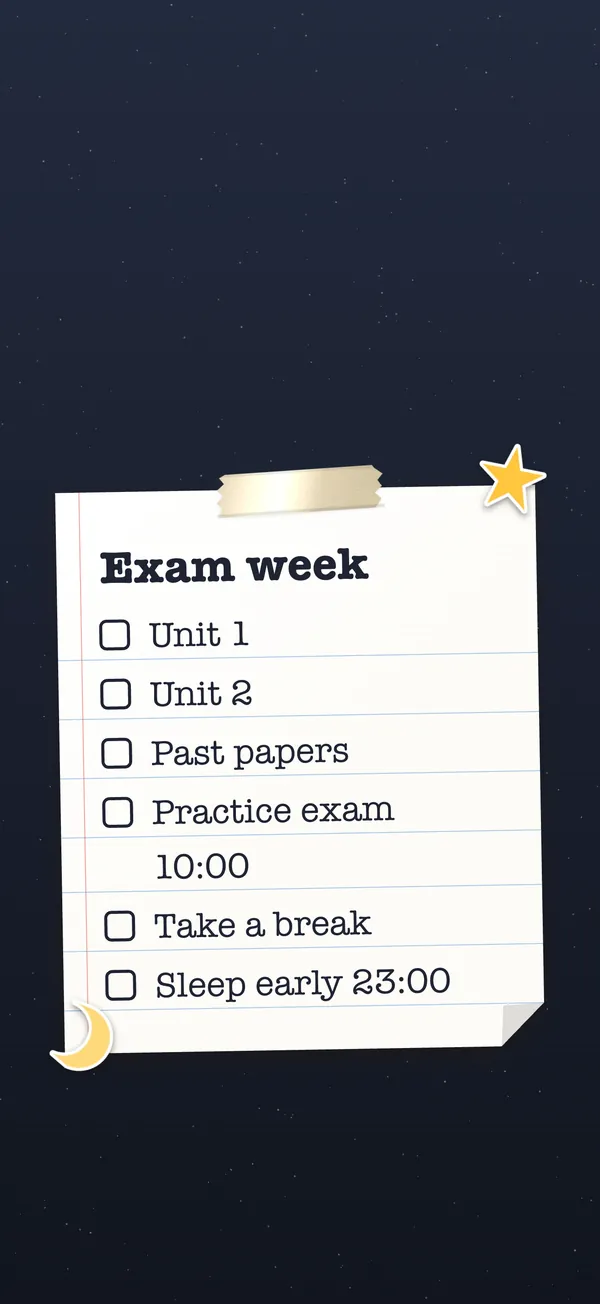
Exam week: a study checklist per subject and a note with the exam time.
Moving house: boxes, utilities, address changes. DailyWall even has ready-made walls for a week, an exam, shopping, a morning routine and a move to start from.
Want more layouts? See 12 to-do list Lock Screen ideas, and for exam season, the study planner Lock Screen.
Questions people ask
Can I show Reminders on the iPhone Lock Screen?
Yes. Add the Reminders widget from Customize → Lock Screen → Add Widgets. It shows a few items from one list.
How do I make my to-do list my wallpaper?
Write it in DailyWall and set up the Lock Screen automation once. The wallpaper is rebuilt from the list each time you close the app, so ticked items show their ticks.
Can I tick off tasks from the Lock Screen?
With DailyWall’s Control you can complete the next open note from the Lock Screen or Control Center; the Home Screen widget lets you tap a note’s ring to complete it.
Will a to-do list wallpaper drain my battery?
No. It is a normal still wallpaper; it only changes when the automation sets a new one.
Is it free?
The Reminders widget is free. In DailyWall, the Lock Screen list and five notes a day are free; Pro removes the daily limit.
Can I have a different to-do list on my work and personal Lock Screens?
Yes. Create two Lock Screens, link each to a Focus mode, and give each its own widgets. A notes wallpaper app updates the Lock Screen that is active when it runs.
Can my Apple Reminders show up on the to-do wallpaper?
Yes, from DailyWall 1.8.5. Turn on Reminders (and Calendar events, if you like) in DailyWall’s Settings and choose which lists to include. Today’s reminders become papers on your wall, and so on your Lock Screen; ticking one on the wall ticks it in Reminders too. Nothing is sent to a server.