 DailyWall
Yes. iOS has no switch that pins a note, but you can show a line or two with a Lock Screen widget, add a Notes button that opens a new note, or make your notes the wallpaper itself. Only the wallpaper shows whole notes while the phone is locked.
iPhone has no setting that pins a note to the Lock Screen, so people use one of three workarounds: a widget under the clock, a Notes control in the corner, or a wallpaper made from the note itself. This guide shows what each one really displays while your phone is locked, how to set it up on iOS 26 and iOS 27, and which one to pick for a shopping list, a reminder to yourself or a whole day of plans.
The quick answer: which way fits you?
If you only need to open a note fast, use the Notes control. If you want one short line visible all the time, use a widget. If you want to actually read your notes, checklists included, without unlocking, the wallpaper method is the only one that has the room.
All three are free to try. The first two are built into iOS; the third needs an app that turns your notes into the wallpaper and a Shortcuts automation that keeps it current.
Way 1: the Notes control (opens a note, does not show it)
Since iOS 18 you can replace the flashlight or camera buttons at the bottom of the Lock Screen with other controls, including one that starts a new note. It is the fastest way to write something down, but it does not display anything: the note opens after you tap and authenticate.
Tick the steps as you go
Way 2: a widget under the clock (one or two lines)
Lock Screen widgets sit under the clock or as a single line above it. iOS draws them small and in one tint, so a widget can show a count, a title or a short line of text, not a full note. Apple’s Notes app focuses on Home Screen widgets (a note or a folder); depending on your iOS version it may not offer a Lock Screen widget that shows note text at all, which is why many people use Reminders or a third-party notes app here.
DailyWall’s Lock Screen widget, for example, can show how many notes are left today, the next note, or one line above the clock.
Tick the steps as you go
Way 3: a wallpaper made from your notes (whole notes, updated for you)
The wallpaper has the whole screen. A picture with text on it works once, but the moment your plans change you would have to make a new one. The fix is to generate the wallpaper from your notes and let Shortcuts set it automatically.
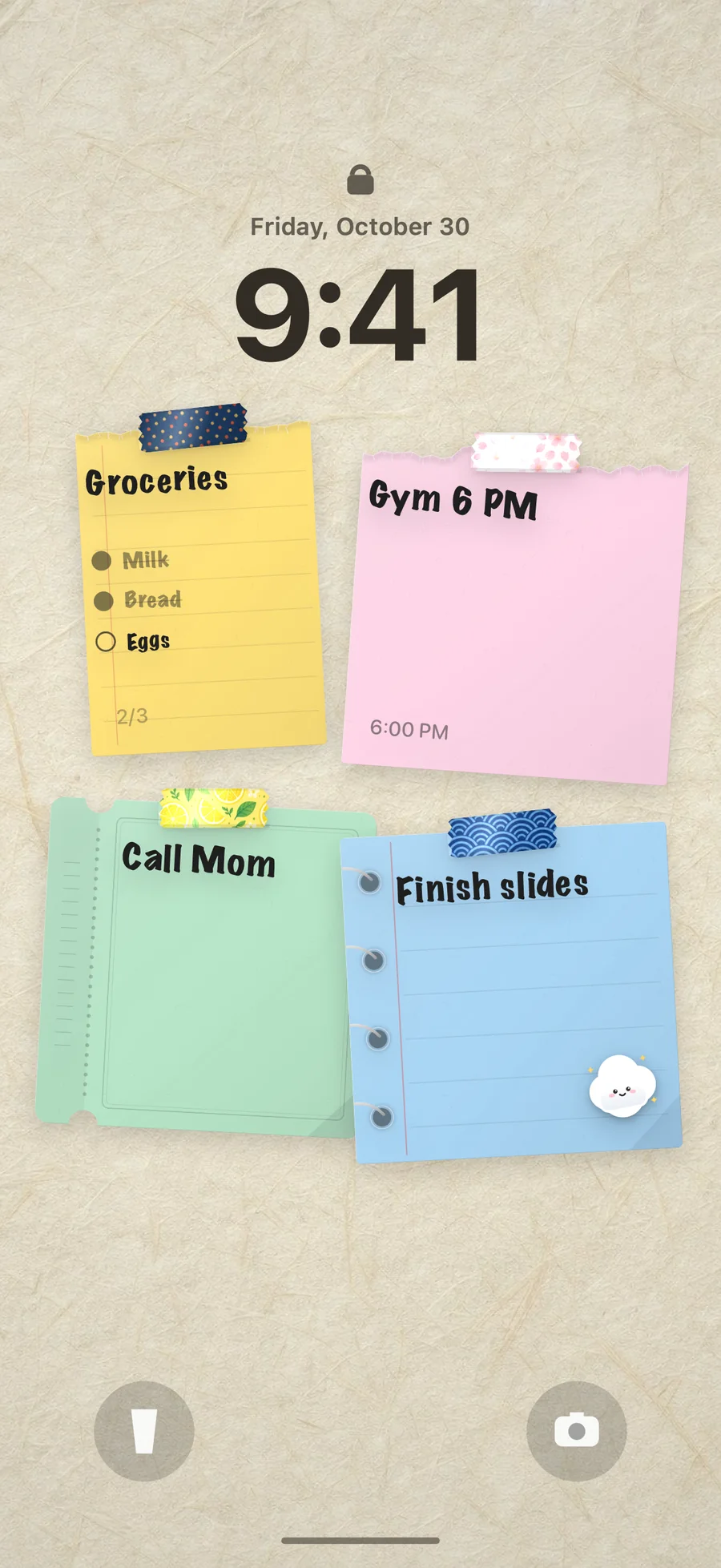
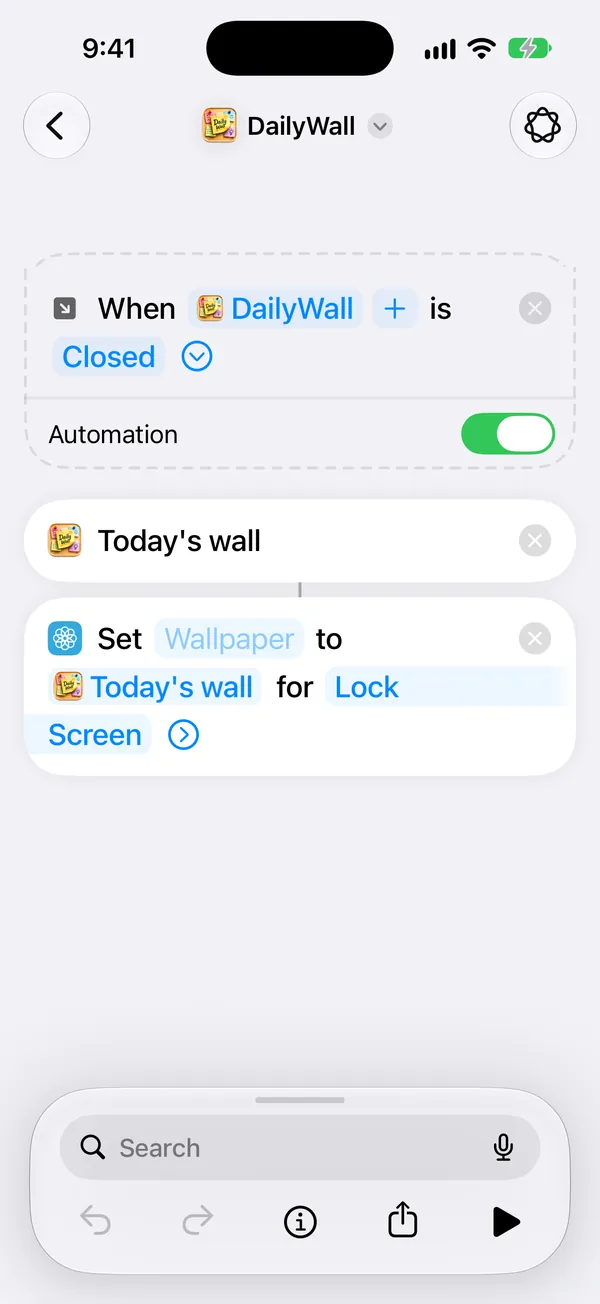
That is what DailyWall does. You write notes on a wall in the app, as paper sticky notes with checklists, times, stickers and washi tape. When you close the app, a Shortcuts automation sets that wall as your Lock Screen, so the Lock Screen always shows today’s real notes, ticks included.
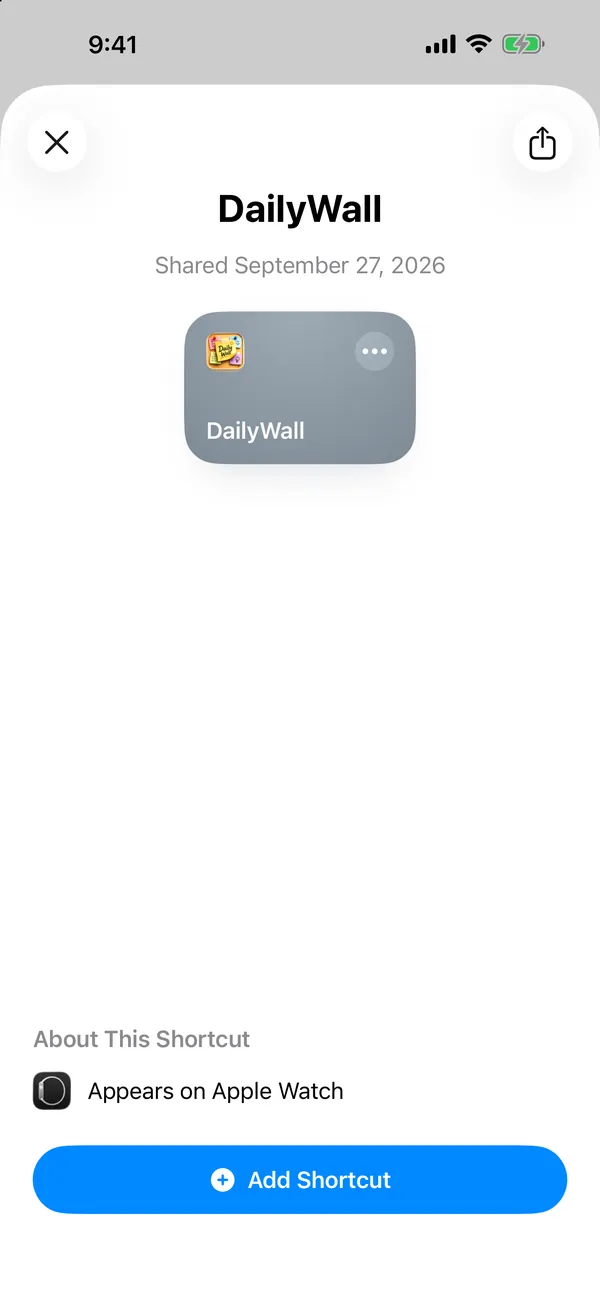
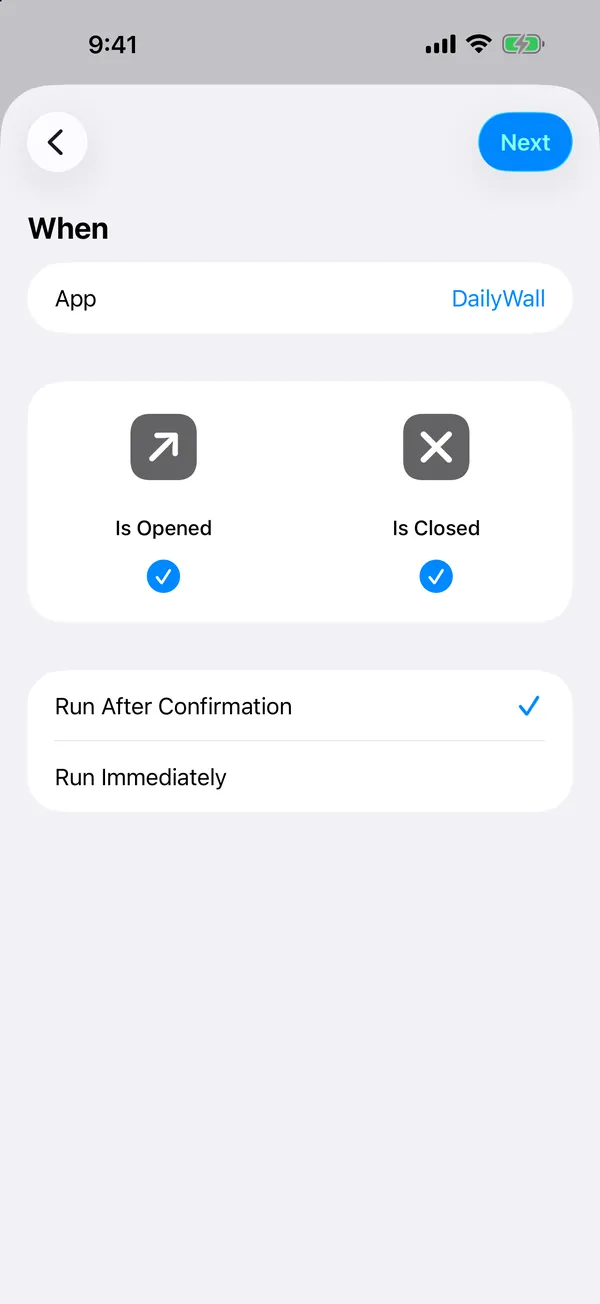
Set up the self-updating notes wallpaper, step by step
It takes about two minutes, once. DailyWall’s Lock Screen page detects your iOS version and opens each screen for you; here is what happens.
Tick the steps as you go
New: habits, calendar papers and a wall from one sentence
DailyWall 1.8.5 adds three ways for notes to reach your wall without writing each one by hand. Habits: pick one of 44 templates, from drinking water to an evening walk, and its paper hangs itself on the days you chose, with dots you fill in as you go (habit ideas). A wall from one sentence: type or dictate “dentist tomorrow at 10, buy oat milk, gym on Friday” and it becomes separate papers on the right days. Calendar and Reminders papers: switch them on in DailyWall’s Settings and today’s events and reminders turn into papers; tick a reminder on its paper and it is ticked in Reminders too.
They all hang on the same wall, so they reach your Lock Screen the same way: close the app and the shortcut sets the new wallpaper. The setup above stays exactly the same.
The three ways side by side
Notes control: shows nothing while locked; one tap to write; set up by customizing the Lock Screen.
Widget: one or two lines, a single tint; updates by itself; set up by adding a widget.
Notes wallpaper: whole notes in colour with checklists and stickers; updates when you close the app (plus an optional morning refresh); set up once with a Shortcuts automation.
You can combine them: the wallpaper for the day, a small widget for the count, the control for quick capture.
Troubleshooting
The Lock Screen did not change after I edited a note: the automation runs when you leave DailyWall. Swipe home once after editing.
I see a notification every time it runs: on iOS 26, make sure the automation is set to Run Immediately and that Notify When Run is off.
The clock covers my note: leave the top third of the wall empty. DailyWall keeps room for the clock and widgets, but very tall notes can reach it.
It stopped after an iOS update: open DailyWall’s Lock Screen page and run the setup check again; iOS 27 moved automations inside the shortcut. More in our iOS 27 Lock Screen tips.
Questions people ask
Can I put a note on my iPhone Lock Screen without an app?
Only a static one. Write the text on a photo with Markup in the Photos app and set it as your wallpaper; you will have to remake it every time the note changes. A widget from Reminders can show a few items, but not a free-form note.
Can I put a sticky note on my Lock Screen?
Yes. DailyWall draws your notes as paper sticky notes, with tape and stickers, and makes them your Lock Screen wallpaper through a one-time Shortcuts automation.
Does it work on iOS 26 and iOS 27?
Yes. iOS 27 moved the automation trigger inside the shortcut; DailyWall’s setup detects your version and shows the matching steps.
Does it fill my photo library with wallpapers?
No. DailyWall never writes to Photos on its own and never deletes anything.
Is it free?
Yes. The Lock Screen wallpaper and five notes a day are free, with no account. Pro is optional.
Can I do this on Android or iPad?
DailyWall runs on iPhone and iPad with iOS/iPadOS 17 or later. There is no Android version.