Black Friday: Pro half price for year oneon the yearly plan, until 1 Dec. The discount shows on Apple’s purchase sheet.Get it
DailyWall Get the app

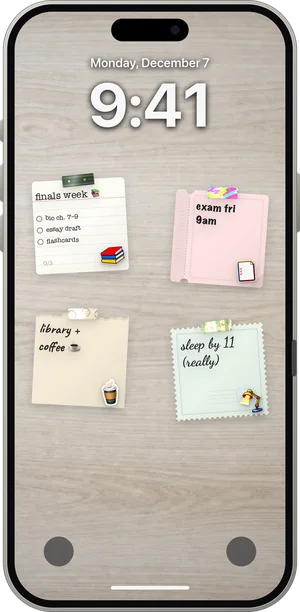
Study planner Lock Screen: a revision plan you see every time you pick up your phone

Updated October 30, 20264 min readSerkan Kaplan

Quick answer

A study planner Lock Screen shows today’s two to four study blocks, a short checklist of topics and the date of your next exam. Keep it to one screen you can read in a glance, update it each evening, and pair it with a Focus mode so notifications stay quiet while you revise.

During exam season your phone is the biggest distraction on the desk. It’s also the thing you look at most. A study planner Lock Screen uses that against the distraction: every time you reach for the phone, the first thing you see is today’s revision plan, not a notification. Done well, it answers “what should I be doing right now?” in one glance, which is often the moment you’d otherwise drift into an app. Below: what to put on it, six layouts that work for students, and how to keep it updated without making a new wallpaper every day.

What to put on a study planner Lock Screen

Think of the Lock Screen as the sticky note on the edge of your monitor, not as your full timetable. These are the pieces that earn their place:

Tick the steps as you go


6 study planner Lock Screen layouts

Pick the one that matches where you are in the revision cycle.

Tick the steps as you go


Focus blocks and Pomodoro on your Lock Screen

Most students study better in timed blocks than in vague “afternoons”. The Pomodoro technique uses 25 minutes of work and a 5-minute break; longer 50- or 90-minute blocks work well for essays and problem sets. The Lock Screen isn’t the timer, it’s the scoreboard: how many blocks you planned today and how many are done.

In DailyWall 1.8.5 you can set up Focus block as a habit: choose how many blocks a day and their length (25 + 5, 50 + 10 or 90 minutes), and a paper with one dot per block appears on your wall and so on your Lock Screen. Our focus block and Pomodoro habit page explains the three lengths and how to protect a block from interruptions.


Make your phone less distracting while you revise

A good Lock Screen helps, but it works best with a couple of iPhone settings. Create a separate study Lock Screen and link it to a Focus mode: touch and hold the Lock Screen, tap Focus at the bottom and choose your study Focus. When the Focus turns on, the study planner appears and notifications from apps you didn’t allow stay quiet.

Put the phone face down, out of reach, during a block. Pick it up between blocks, see the plan, tick the dot, put it back. The plan is there so the phone has a job other than distracting you.


Revise with friends: a shared study wall

Revising with a classmate or a study group? A shared wall puts the same notes on everyone’s phone: the group’s exam dates, who’s summarising which chapter, and the library slot you booked. Each note shows who wrote it, and everyone can tick items off. It works the same way as the shared lists couples and families use, just with past papers instead of groceries.


Set up your study planner Lock Screen in DailyWall

Tick the steps as you go

Questions people ask

How do I put a study plan on my iPhone Lock Screen?

Write today’s blocks, topics and exam date as notes in DailyWall and set up the Lock Screen automation once. Or make a one-off image with a free wallpaper maker, which you’ll need to redo when the plan changes.

Does DailyWall have a Pomodoro timer?

No. DailyWall isn’t a timer and doesn’t lock your phone. It shows how many focus blocks you planned and how many you’ve finished, on your wall and Lock Screen.

Can the Lock Screen count down to my exam?

DailyWall doesn’t count down automatically. An “Exam in 30 days” note you update each morning works well, and the Exam countdown ready-made wall gives you a starting layout.

What’s the best Lock Screen for studying?

One you can read in a glance: today’s study blocks, three topics and the next exam date, on a calm background with the top third clear for the clock.
Keep reading
Free Christmas wallpapers for iPhone, plus 15 Christmas Lock Screen ideas10 free Christmas iPhone wallpapers in a paper-craft style, how to set one on the Lock Screen in iOS 27, and 15 Christmas Lock Screen ideas that are pretty and useful.Read the guideNew Year's resolutions for 2027: a simple method that actually lastsFewer goals, clear if-then plans, set review dates and one reminder you see every day: a practical way to make 2027's resolutions stick.Read the guideTo-do list Lock Screen ideas: 12 layouts that actually get usedTop three, now/next/later, errand routes, a done list: 12 to-do list Lock Screen layouts and who each one suits.Read the guideiOS 27 Lock Screen tips: automations, notes and widgets after the updateThe Automation tab is gone in iOS 27. Here’s where Lock Screen automations live now, how to switch them on, and the tips that still apply.Read the guideAesthetic Lock Screen ideas with sticky notesCosy, minimal, pastel or scrapbook: how to design an aesthetic iPhone Lock Screen with sticky notes that still works as a to-do list.Read the guideValentine’s Day couples widgets: 14 shared-note ideas for iPhoneA morning note, a date-night ticket, a riddle trail: 14 Valentine’s ideas for a couples widget and a shared Lock Screen, plus how to set it up.Read the guideHabit stacking: the simple formula, with examples you can copyAttach each new habit to something you already do every day; here's the formula, how to choose anchors and 25 examples to copy.Read the guideShared lists for couples and families: what actually worksGroceries, chores, date ideas and a family whiteboard: how to share lists at home so they get used, not ignored.Read the guideAesthetic iPhone Home Screen ideas (and layout ideas that actually work)Twelve aesthetic iPhone Home Screen ideas, eight layout ideas, and step-by-step help with icon colours, custom icons, widget stacks and a matching Lock Screen.Read the guideAesthetic lock screen wallpaper ideas: 45 cute, cool and useful looks45 aesthetic lock screen wallpaper ideas in five styles, the rules that keep them readable, and how to make your own iPhone wallpaper for free.Read the guideThe best habit tracker app for iPhone: 9 options compared honestlyNine habit tracker apps for iPhone compared by style: streak counters, cross-platform trackers, games, social apps and a Lock Screen tracker, plus how to choose.Read the guideBrain dump journal: how to clear your head in 10 minutesA ten-minute brain dump method: write everything down, sort it into four groups, pick three things for today and park the rest, with prompts and templates for different situations.Read the guideBullet journal ideas: 60 page ideas for beginnersSixty bullet journal page ideas for beginners, from the index and future log to trackers, wellbeing pages and fun collections, with easy layouts and tips to keep going.Read the guideHow to customize your iPhone Lock Screen, step by stepEvery way to change and edit your iPhone Lock Screen: wallpaper, clock, widgets, bottom buttons, depth effect, Photo Shuffle, Focus links and notifications.Read the guide75 gratitude journal prompts (plus how to start a gratitude journal that lasts)75 gratitude journal prompts for adults, Thanksgiving, hard days and kids, a simple way to start a gratitude journal, a 30-day plan and gratitude list ideas.Read the guideHabit tracker ideas for your bullet journal (and your Lock Screen)Fifty habits worth tracking, grouped into health, movement, mind, learning, productivity, home, relationships and money, plus eight bullet journal tracker layouts and a Lock Screen version.Read the guideHidden iPhone features you should be using (30 tricks that actually help)Thirty useful hidden iPhone features and tricks, from the space-bar trackpad and Live Text to Back Tap, Send Later, locked apps, charging limits and a Lock Screen that shows your own notes.Read the guide100 journal prompts for every day (morning, evening, gratitude and more)A hundred daily journal prompts grouped into morning, evening, gratitude, self-discovery, goals and fun, with tips for beginners and a simple way to make journaling a daily habit.Read the guideMorning routine: a simple plan you’ll actually stick toA realistic morning routine guide with five building blocks, ready-to-copy 15, 30 and 60-minute routines, versions for students and home workers, and how to make it last.Read the guideNew Year resolution ideas: 100 goals for 2027 you can actually keep100 specific New Year resolution ideas for 2027, grouped by area of life, plus a short method for picking the right ones and keeping them past February.Read the guide30 productivity tips that actually work (and how to pick the right ones)Thirty practical productivity tips for work, study and home, grouped into planning, focus, energy, phone distractions and habits, plus a one-week plan to test them.Read the guideStudy planner template: how to plan your study week in 7 stepsA step-by-step study planner template with five ready-to-use weekly schedules for high school, university, exam season, working students and a single study day.Read the guideStudy tips that actually work: 25 research-backed study methodsThe best study methods according to learning research, how to use active recall, spaced repetition, interleaving and the Feynman technique, and which popular habits waste your time.Read the guideMethods for time management: 8 techniques and when to use each onePomodoro, the Eisenhower matrix, time blocking, timeboxing, the 1-3-5 rule, eat the frog, Getting Things Done and the Ivy Lee method: how each works, who it suits and how to combine them.Read the guideFree tool: to-do list wallpaper makerType a list, pick a sticky note, download a Lock Screen PNG. No sign-up.Make one nowFocus block and Pomodoro habitLearn moreTo-do list on the Lock ScreenSee today’s to-do list every time you pick up your iPhone: the Reminders widget, a to-do widget or a list wallpaper that shows your ticks. Steps inside.Learn moreHow to put notes on your iPhone Lock ScreenYes. Pin a note with a widget, the Notes control or a wallpaper that updates itself. Every tap for iOS 26 and iOS 27, with screenshots. Free options first.Read the guide
Put today's study plan on your Lock ScreenDailyWall · free iPhone appGet the app